Ayuda - iXBRL Viewer
¿Qué es iXBRL?
iXBRL (Inline eXtensible Business Reporting Language) es un formato que permite incrustar datos estructurados XBRL dentro de documentos HTML. Esto significa que un mismo documento puede ser leído por humanos en un navegador y procesado automáticamente por sistemas informáticos.
El iXBRL Viewer es una herramienta interactiva que facilita la navegación y consulta de informes financieros en formato iXBRL, permitiéndole explorar los datos, ver detalles de cada concepto, buscar información específica y exportar tablas.
Navegación
Esta versión del visor proporciona acceso directo al contenido del documento sin página de portada.
Barra de navegación
La barra de navegación en la parte superior del visor proporciona acceso rápido a todas las funcionalidades principales:
- Botones Anterior/Siguiente: Use estos botones para navegar secuencialmente entre los diferentes roles (estados financieros, notas, anexos) del documento sin necesidad de usar el menú desplegable
- Selector de roles: Menú desplegable central que muestra el rol actual y permite cambiar rápidamente a cualquier otro reporte incluido en el documento. Los roles típicamente incluyen Balance General, Estado de Resultados, Flujo de Efectivo, Notas, etc.
- Botón de ayuda (?): Abre esta página de ayuda en una nueva ventana
- Modo oscuro: Alterna entre el tema claro y oscuro. Su preferencia se guarda automáticamente en el navegador
- Botón de imprimir: Prepara el documento para impresión, ocultando elementos de la interfaz
- Selector de idioma: Cambia entre español e inglés para las etiquetas de la interfaz
- Botón de búsqueda: Abre el panel de búsqueda para encontrar texto específico en el documento
- Botón del panel lateral: Muestra/oculta la tabla de contenido y el panel de detalles XBRL
Tabla de contenido
El panel lateral derecho muestra la tabla de contenido del documento actual, que se actualiza automáticamente al cambiar de rol:
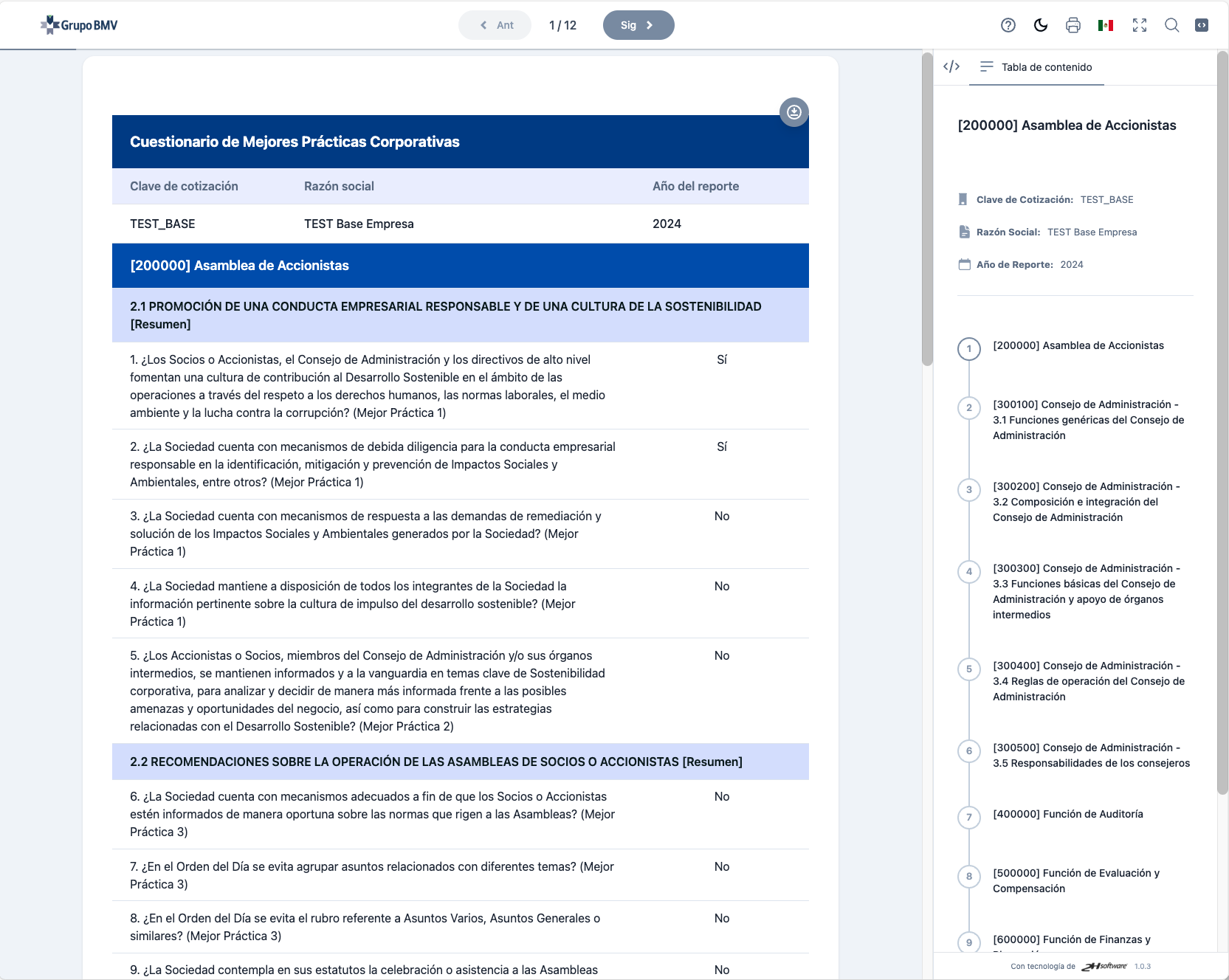
Tabla de contenido mostrando la estructura jerárquica del documento
- Estructura jerárquica: Los conceptos se organizan en una estructura de árbol que refleja la organización del documento
- Navegación rápida: Haga clic en cualquier elemento de la tabla para desplazarse automáticamente a esa sección del documento
- Indicador de posición: El elemento actualmente visible se resalta automáticamente mientras navega por el documento
- Colapsar/expandir: Use los indicadores de flecha para mostrar u ocultar subsecciones
Búsqueda
La función de búsqueda le permite encontrar rápidamente cualquier texto o concepto dentro del documento financiero:
Cómo usar la búsqueda
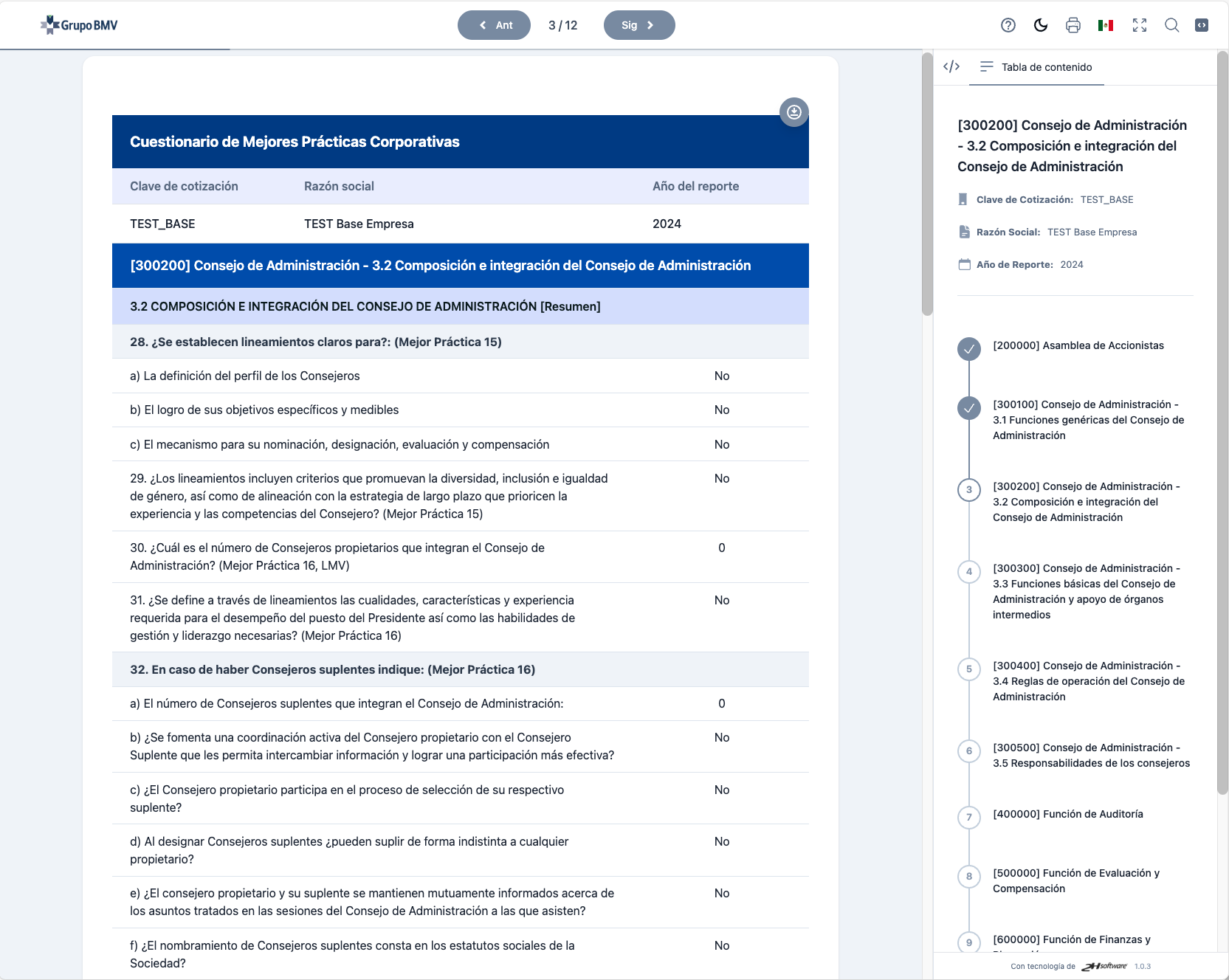
Panel de búsqueda mostrando resultados filtrados
- Abrir búsqueda: Haga clic en el icono de lupa en la barra superior o presione Ctrl+F (Cmd+F en Mac)
- Escribir término: Ingrese la palabra o frase que desea buscar en el campo de texto
- Resultados instantáneos: Los resultados aparecen automáticamente mientras escribe
- Contador de resultados: En la parte superior se muestra el número total de coincidencias encontradas
Navegación de resultados
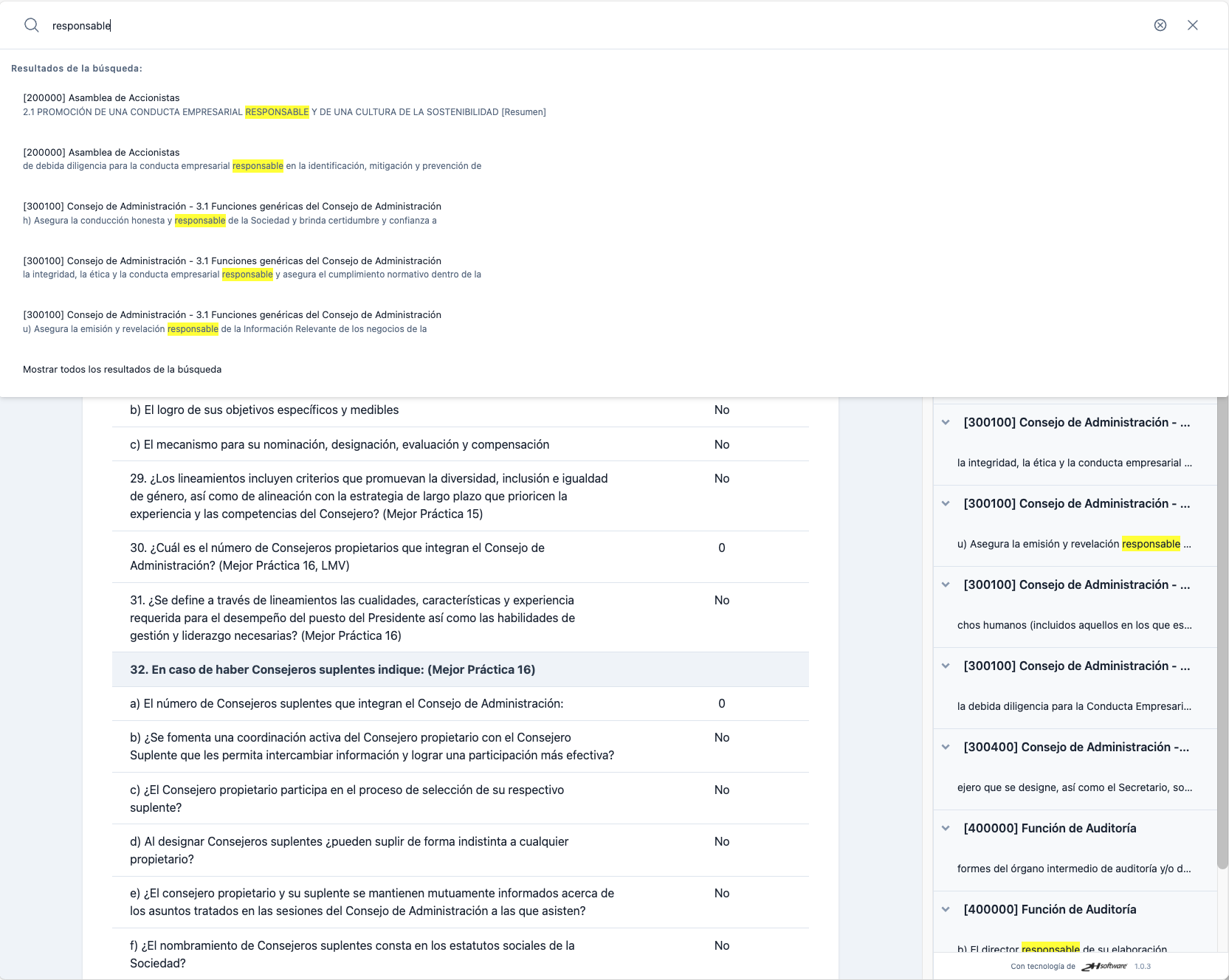
Los términos de búsqueda se resaltan en amarillo en el documento
- Resaltado automático: Todas las coincidencias se destacan en color amarillo en el documento
- Lista de resultados: El panel derecho muestra una lista ordenada de todos los resultados encontrados
- Contexto del resultado: Cada resultado muestra el texto circundante para mayor contexto
- Navegación con flechas: Use los botones de flecha arriba/abajo para moverse entre resultados
- Clic directo: Haga clic en cualquier resultado de la lista para saltar directamente a esa ubicación en el documento
- Ver todos los resultados: Use el enlace "Mostrar todos los resultados" para expandir la lista completa
- Cerrar búsqueda: Haga clic en el botón X o presione Escape para cerrar el panel y limpiar los resaltados
Selección de hechos
El documento iXBRL contiene hechos XBRL que son valores numéricos o textos etiquetados con metadatos contables. Estos elementos son interactivos y pueden ser seleccionados para ver sus detalles:
- Identificar hechos: Los valores que son hechos XBRL típicamente aparecen con un subrayado punteado o cambian de color al pasar el cursor sobre ellos
- Seleccionar un hecho: Haga clic en cualquier valor numérico o texto marcado dentro del documento
- Resaltado visual: El hecho seleccionado se resalta con un borde o fondo de color para indicar que está activo
- Apertura automática del panel: El panel lateral derecho se abre automáticamente mostrando los detalles XBRL del hecho seleccionado
- Deselección: Haga clic fuera del hecho o presione Escape para deseleccionar y cerrar el panel de detalles
Panel de detalles XBRL
El panel de detalles XBRL proporciona información completa sobre el hecho seleccionado, organizada en pestañas para facilitar la navegación:
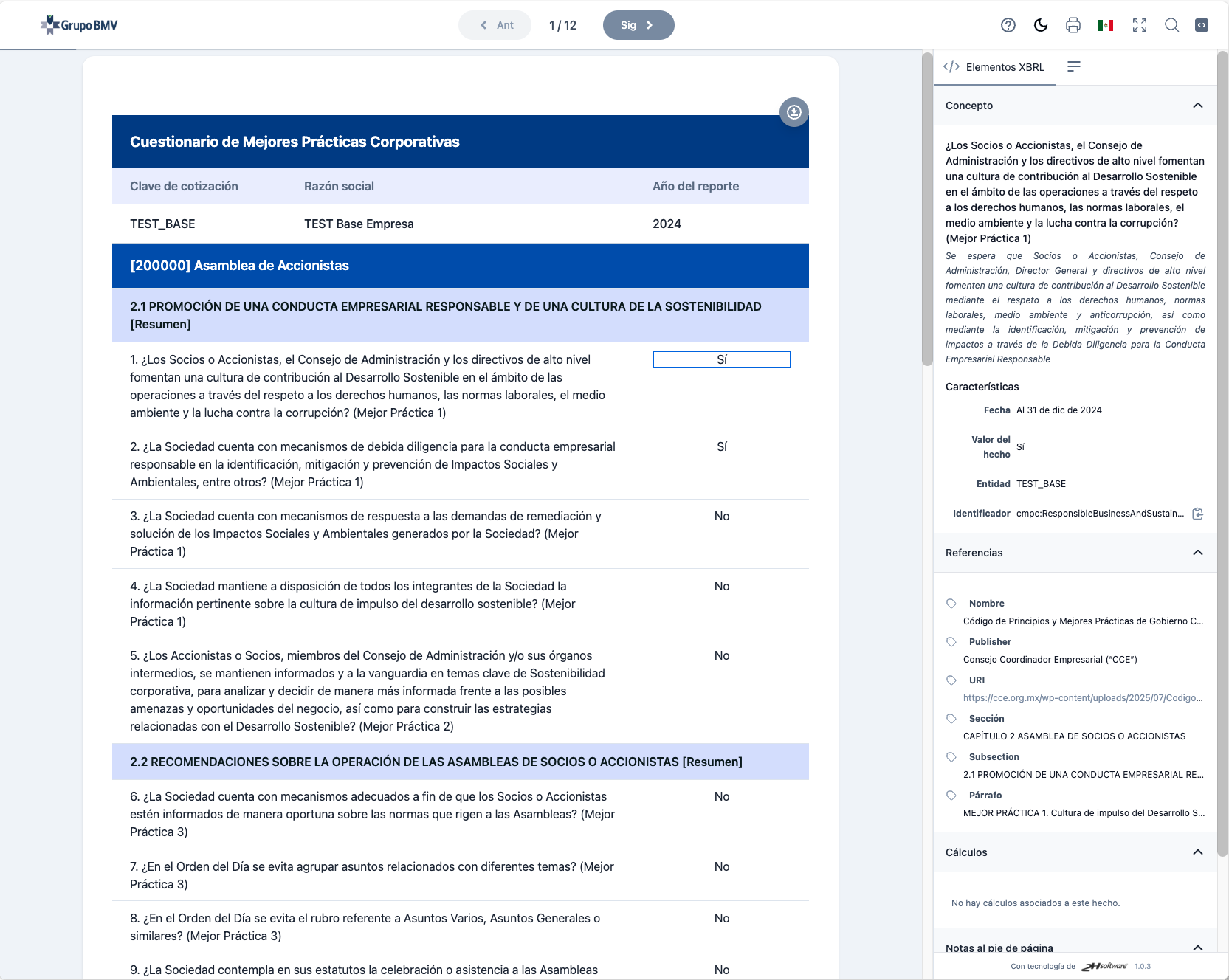
Panel de detalles mostrando información del concepto, referencias y cálculos
Pestaña: Concepto
Esta pestaña muestra las características fundamentales del hecho:
- Nombre del concepto: Identificador único del elemento dentro de la taxonomía XBRL
- Valor del hecho: El valor numérico o texto asociado
- Fecha: Período o fecha específica a la que aplica el hecho (fecha instantánea o rango de fechas)
- Entidad: Identificador de la entidad reportante
- Identificador: ID técnico del hecho en el documento
Pestaña: Referencias
Muestra las referencias a estándares contables y normativos:
- Nombre: Título del estándar o normativa (ej: NIF, IFRS, US-GAAP)
- Publisher: Organismo emisor del estándar
- URI: Enlace a la documentación oficial del estándar
- Sección/Párrafo: Referencias específicas dentro del estándar aplicable
Pestaña: Cálculos
Si el concepto es parte de una fórmula de cálculo, esta pestaña muestra:
- Relaciones de cálculo: Cómo se compone el total a partir de otros conceptos
- Pesos: Indicadores de suma (+1) o resta (-1) en la fórmula
- Jerarquía: Estructura de la relación padre-hijo entre conceptos
- Nota: Si no hay cálculos asociados, se muestra el mensaje "No hay cálculos asociados a este hecho"
Pestaña: Notas al pie de página
Muestra notas aclaratorias o explicativas asociadas al hecho:
- Contenido de la nota: Texto completo de la nota explicativa
- Enlaces: Hipervínculos a otras secciones del documento
- Múltiples notas: Se muestran todas las notas asociadas al hecho
Exportar tablas
El visor permite exportar tablas individuales del documento a formato Excel (.xlsx) para su análisis o procesamiento posterior:
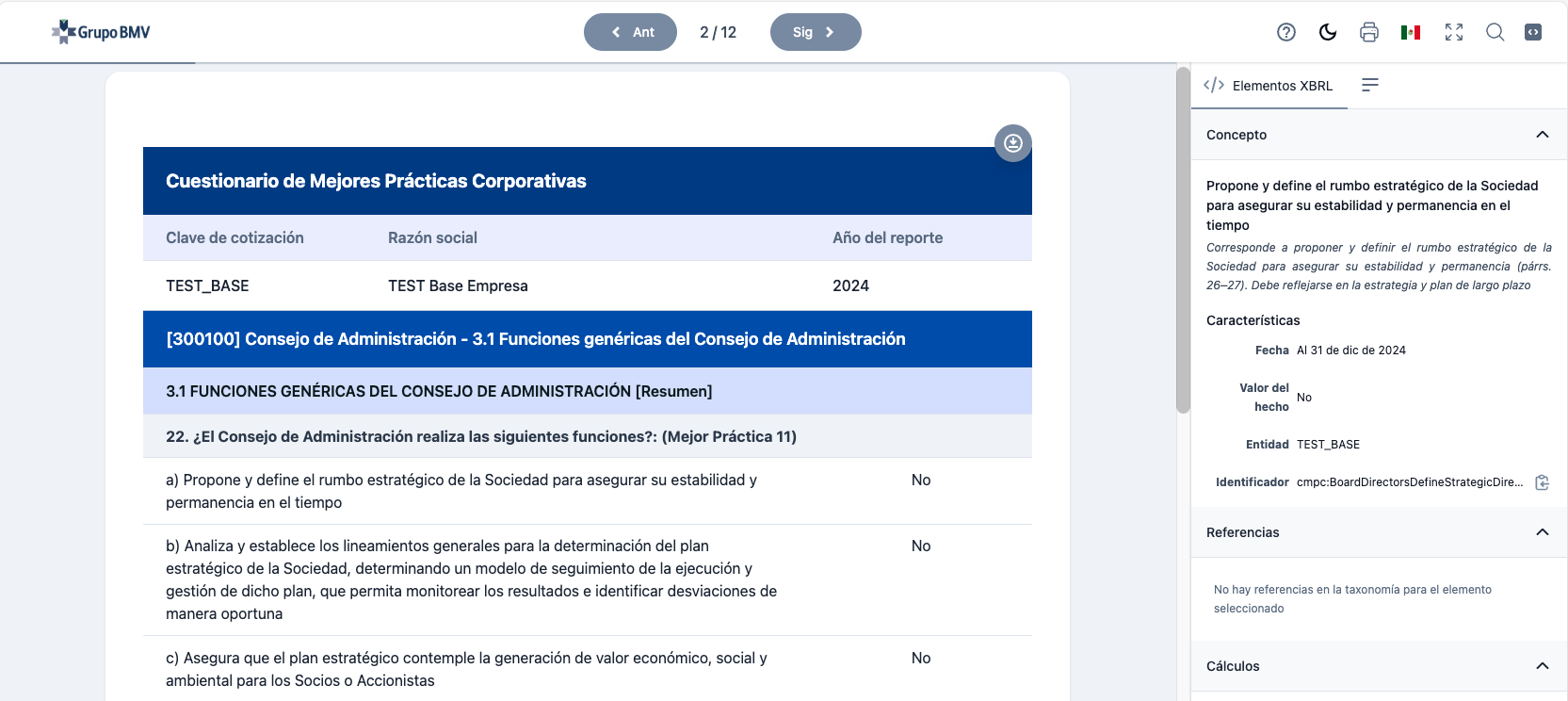
Botón "Exportar tabla" visible encima de cada tabla
Cómo exportar una tabla
- Localizar el botón: Busque el botón "Exportar tabla" que aparece flotando sobre la esquina superior derecha de cada tabla en el documento
- Hacer clic: Haga clic en el botón para iniciar la descarga
- Descarga automática: El archivo Excel se descarga automáticamente a su carpeta de descargas predeterminada
- Nombre del archivo: El archivo se nombra automáticamente según el contenido de la tabla
Características de la exportación
- Formato preservado: La estructura, filas y columnas de la tabla se mantienen intactas
- Valores numéricos: Los números se exportan como valores numéricos, no como texto, permitiendo cálculos en Excel
- Encabezados: Los títulos de columnas y filas se incluyen en la exportación
- Formato XLSX: Compatible con Microsoft Excel, LibreOffice Calc, Google Sheets y otras aplicaciones de hoja de cálculo
Características adicionales
Modo oscuro
El visor incluye un tema oscuro que reduce el brillo de la pantalla y puede ser más cómodo para la lectura en ambientes con poca luz:
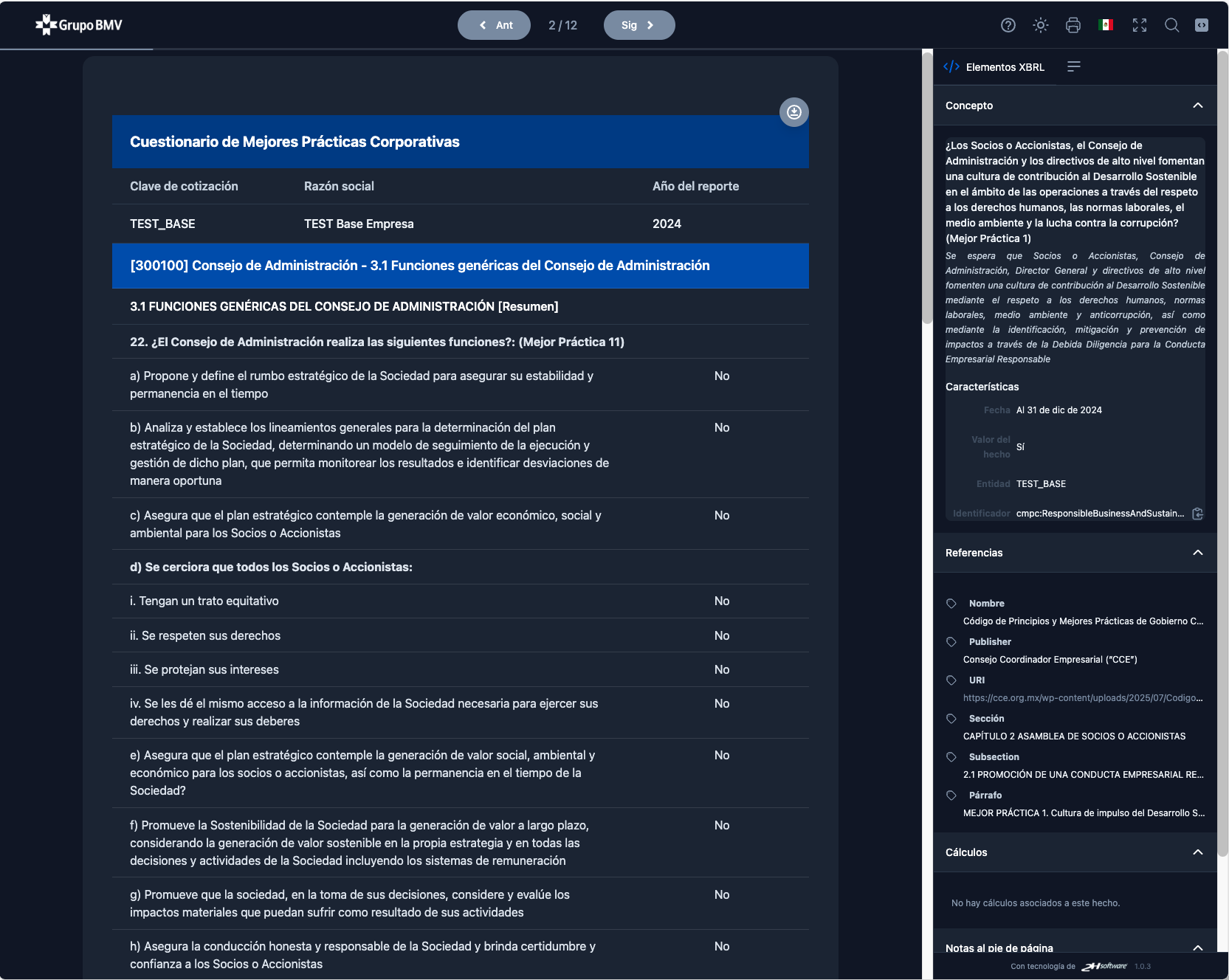
Interfaz del visor en modo oscuro
- Activar/desactivar: Haga clic en el icono de luna/sol en la barra superior derecha
- Cambio instantáneo: El tema cambia inmediatamente en toda la interfaz
- Preferencia guardada: Su elección se guarda automáticamente en el navegador y se recordará en visitas futuras
- Contraste optimizado: Los colores del modo oscuro están diseñados para mantener una buena legibilidad
Imprimir
El visor está optimizado para impresión, permitiendo imprimir el documento actual con un formato limpio:
- Abrir diálogo: Use el botón de imprimir en la barra superior o presione Ctrl+P (Cmd+P en Mac)
- Optimización automática: El visor oculta automáticamente elementos de la interfaz (barras, botones, paneles laterales)
- Contenido limpio: Solo se imprime el contenido del documento actualmente visible
- Configuración: Use las opciones de su navegador para ajustar márgenes, orientación y escala
Cambio de idioma
La interfaz del visor está disponible en español e inglés:
- Selector de idioma: Haga clic en el botón de bandera en la esquina superior derecha
- Cambio instantáneo: Todas las etiquetas de la interfaz se traducen inmediatamente
- Contenido del documento: El contenido del documento iXBRL no se traduce, solo las etiquetas de la interfaz
- Idiomas disponibles: Español (MX) e Inglés (US)
Preguntas frecuentes
¿Qué navegadores son compatibles?
El visor funciona en todos los navegadores modernos: Chrome, Firefox, Safari, Edge. Se recomienda usar las versiones más recientes.
¿Los datos se envían a un servidor?
No. El visor funciona completamente en su navegador. Ningún dato se envía a servidores externos.
¿Puedo guardar cambios en el documento?
No. El visor es de solo lectura. No puede modificar el documento original.
¿Cómo obtengo más ayuda?
Para soporte técnico adicional, contacte al equipo de soporte de su organización.
Soporte técnico
Si tiene problemas técnicos con el visor o necesita asistencia, puede contactarnos:
Help - iXBRL Viewer
What is iXBRL?
iXBRL (Inline eXtensible Business Reporting Language) is a format that allows embedding structured XBRL data within HTML documents. This means a single document can be read by humans in a browser and automatically processed by computer systems.
The iXBRL Viewer is an interactive tool that facilitates navigation and querying of financial reports in iXBRL format, allowing you to explore data, view details of each concept, search for specific information, and export tables.
Navigation
This version of the viewer provides direct access to the document content without a cover page.
Navigation bar
The navigation bar at the top of the viewer provides quick access to all main features:
- Previous/Next buttons: Use these buttons to navigate sequentially between different roles (financial statements, notes, annexes) of the document without using the dropdown menu
- Role selector: Central dropdown menu showing the current role and allowing quick switching to any other report included in the document. Roles typically include Balance Sheet, Income Statement, Cash Flow, Notes, etc.
- Help button (?): Opens this help page in a new window
- Dark mode: Toggle between light and dark theme. Your preference is automatically saved in the browser
- Print button: Prepares the document for printing, hiding interface elements
- Language selector: Switch between Spanish and English for interface labels
- Search button: Opens the search panel to find specific text in the document
- Side panel button: Show/hide the table of contents and XBRL details panel
Table of contents
The right side panel displays the table of contents for the current document, which automatically updates when changing roles:
Table of contents showing the hierarchical structure of the document
- Hierarchical structure: Concepts are organized in a tree structure that reflects the document organization
- Quick navigation: Click any element in the table to automatically scroll to that section of the document
- Position indicator: The currently visible element is automatically highlighted as you navigate through the document
- Collapse/expand: Use the arrow indicators to show or hide subsections
Search
The search function allows you to quickly find any text or concept within the financial document:
How to use search
Search panel showing filtered results
- Open search: Click the magnifying glass icon in the top bar or press Ctrl+F (Cmd+F on Mac)
- Enter term: Type the word or phrase you want to search for in the text field
- Instant results: Results appear automatically as you type
- Results counter: The total number of matches found is shown at the top
Navigating results
Search terms are highlighted in yellow in the document
- Automatic highlighting: All matches are highlighted in yellow in the document
- Results list: The right panel shows an ordered list of all found results
- Result context: Each result shows surrounding text for greater context
- Arrow navigation: Use up/down arrow buttons to move between results
- Direct click: Click any result in the list to jump directly to that location in the document
- Show all results: Use the "Show all results" link to expand the complete list
- Close search: Click the X button or press Escape to close the panel and clear highlights
Fact selection
The iXBRL document contains XBRL facts which are numeric values or texts tagged with accounting metadata. These elements are interactive and can be selected to view their details:
- Identify facts: Values that are XBRL facts typically appear with a dotted underline or change color when hovering over them
- Select a fact: Click on any numeric value or marked text within the document
- Visual highlighting: The selected fact is highlighted with a colored border or background to indicate it is active
- Automatic panel opening: The right side panel automatically opens showing the XBRL details of the selected fact
- Deselection: Click outside the fact or press Escape to deselect and close the details panel
XBRL Details panel
The XBRL details panel provides complete information about the selected fact, organized in tabs for easy navigation:
Details panel showing concept information, references, and calculations
Tab: Concept
This tab shows the fundamental characteristics of the fact:
- Concept name: Unique identifier of the element within the XBRL taxonomy
- Fact value: The associated numeric value or text
- Date: Period or specific date to which the fact applies (instant date or date range)
- Entity: Identifier of the reporting entity
- Identifier: Technical ID of the fact in the document
Tab: References
Shows references to accounting and regulatory standards:
- Name: Title of the standard or regulation (e.g., NIF, IFRS, US-GAAP)
- Publisher: Issuing body of the standard
- URI: Link to the official standard documentation
- Section/Paragraph: Specific references within the applicable standard
Tab: Calculations
If the concept is part of a calculation formula, this tab shows:
- Calculation relationships: How the total is composed from other concepts
- Weights: Indicators of addition (+1) or subtraction (-1) in the formula
- Hierarchy: Structure of the parent-child relationship between concepts
- Note: If there are no associated calculations, the message "No calculations associated with this fact" is displayed
Tab: Footnotes
Shows clarifying or explanatory notes associated with the fact:
- Note content: Complete text of the explanatory note
- Links: Hyperlinks to other sections of the document
- Multiple notes: All notes associated with the fact are displayed
Export tables
The viewer allows you to export individual tables from the document to Excel format (.xlsx) for further analysis or processing:
"Export table" button visible above each table
How to export a table
- Locate the button: Look for the "Export table" button that appears floating over the top right corner of each table in the document
- Click: Click the button to initiate the download
- Automatic download: The Excel file automatically downloads to your default downloads folder
- File name: The file is automatically named according to the table content
Export features
- Preserved format: The structure, rows, and columns of the table are kept intact
- Numeric values: Numbers are exported as numeric values, not text, allowing calculations in Excel
- Headers: Column and row titles are included in the export
- XLSX format: Compatible with Microsoft Excel, LibreOffice Calc, Google Sheets, and other spreadsheet applications
Additional features
Dark mode
The viewer includes a dark theme that reduces screen brightness and may be more comfortable for reading in low-light environments:
Viewer interface in dark mode
- Activate/deactivate: Click the moon/sun icon in the top right bar
- Instant change: The theme changes immediately across the entire interface
- Saved preference: Your choice is automatically saved in the browser and will be remembered on future visits
- Optimized contrast: Dark mode colors are designed to maintain good readability
The viewer is optimized for printing, allowing you to print the current document with a clean format:
- Open dialog: Use the print button in the top bar or press Ctrl+P (Cmd+P on Mac)
- Automatic optimization: The viewer automatically hides interface elements (bars, buttons, side panels)
- Clean content: Only the currently visible document content is printed
- Configuration: Use your browser's options to adjust margins, orientation, and scale
Language switching
The viewer interface is available in Spanish and English:
- Language selector: Click the flag button in the top right corner
- Instant change: All interface labels are translated immediately
- Document content: The iXBRL document content is not translated, only the interface labels
- Available languages: Spanish (MX) and English (US)
Frequently asked questions
What browsers are supported?
The viewer works in all modern browsers: Chrome, Firefox, Safari, Edge. Latest versions are recommended.
Is data sent to a server?
No. The viewer works entirely in your browser. No data is sent to external servers.
Can I save changes to the document?
No. The viewer is read-only. You cannot modify the original document.
How do I get more help?
For additional technical support, contact your organization's support team.
Technical support
If you have technical issues with the viewer or need assistance, you can contact us: